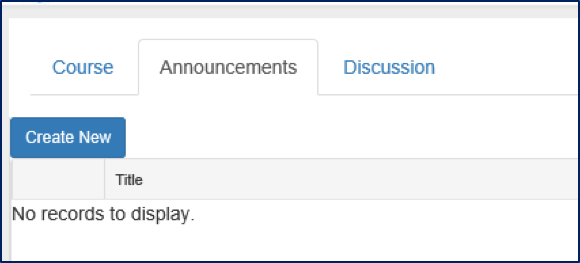
The Announcement and Discussion tabs are automatically created for all SPOC resource types. These tabs provide the social component of SPOCs that are not available for other certificate resources.
In order to post an announcement, a user must have a role within the SPOC resource. This may be the Instructor role for facilitated SPOCs or the Course Owner role for Open SPOCs. The user must also be enrolled in the SPOC resource. The announcement tab can only be accessed from within the SPOC resource.
NOTE: The ability to post announcements may be configured differently in your system. Please contact Support with questions about the exact configuration of your system.
To post an announcement, enroll in the SPOC resource.
Go to your Learning Plan and launch the SPOC.
Go to the Announcement Tab. If you are authorized to post announcements, you will see a button that says Create New.
When you click the Create New button, the Blog Post pop-out box will display.
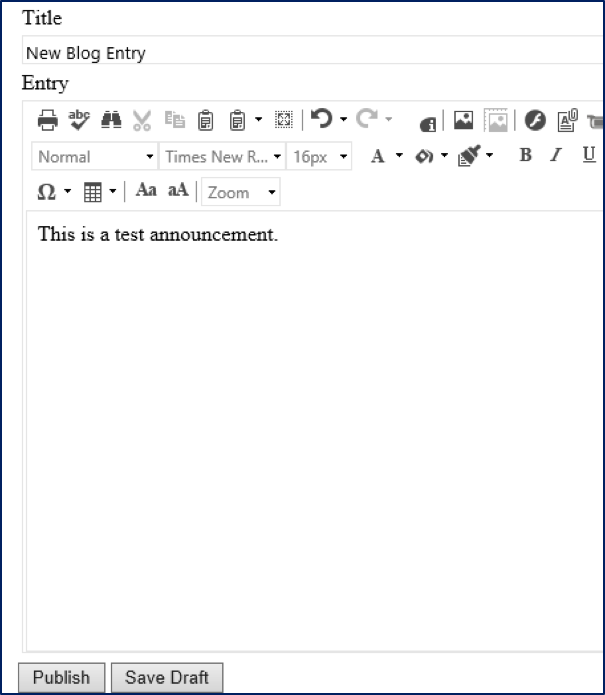
Create the announcement. Announcements can contain images, videos, document links, and hyperlinks. When the announcement is complete, click the Publish button at the bottom of the window to display the announcement to everyone currently enrolled in the SPOC.
If the announcement is not done, you can also click Save Draft to save your work. A draft can be accessed on this tab at any time.
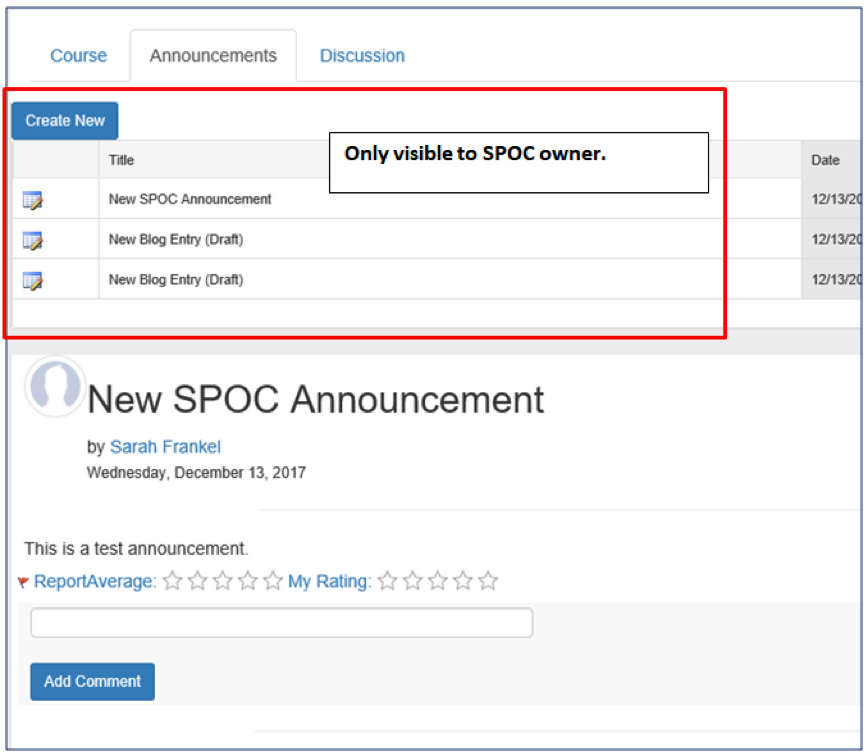
Only the SPOC admin will see the widget that allows the announcement to be edited. All other learners will only see the announcement. All learners will be able to comment on the announcement.
The Discussion tab is open to all learners who are enrolled in the SPOC resource. Both learners and instructors can post comments and answer questions on the discussion board.
An open SPOC will have just one announcement tab and discussion board for all participants in that SPOC. Since users can enroll in an open SPOC at any time, the participants for an open SPOC can be constantly evolving.
Each session for a Facilitated SPOC will have its own unique announcement and discussion tab with access limited to only those learners who have enrolled into that specific session date.
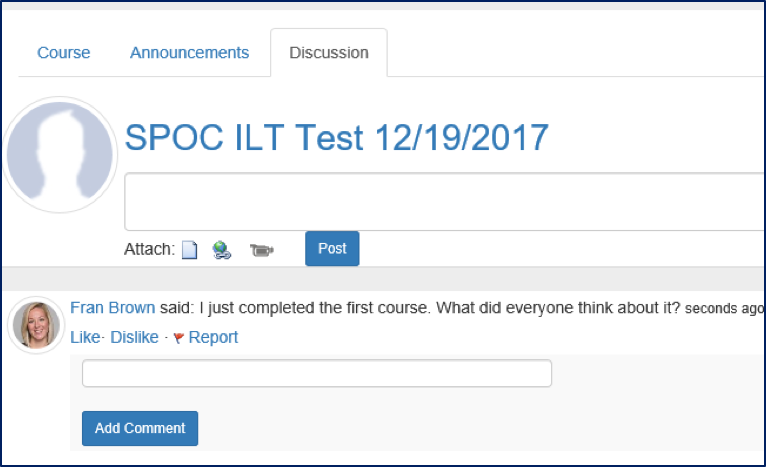
Users can type questions and answers in the comment box. The comment box also supports the ability to:
Click the Post button to post the comment. Once posted, everyone on the discussion board will be able to view and respond to your post.
The announcement tab and the discussion tab for a SPOC resource (or SPOC facilitated session) automatically create a SPOC Group. All SPOC groups can be viewed in the Administrator Console under Social > Manage SPOC Groups.
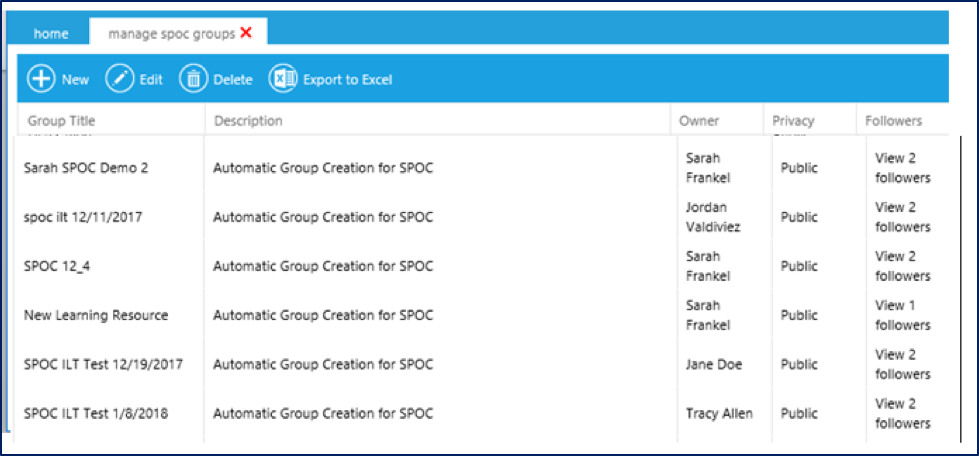
The listed group owner is the person that has the ability to create announcements for that SPOC group. To change the group owner, highlight the name of the group and click the Edit button in the top toolbar.
On the edit screen, click into the Course Owner field and begin typing the name of the new owner.
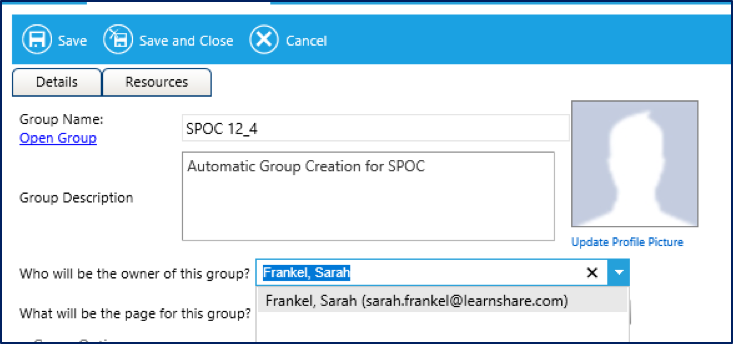
Select the new Course Owner from the drop-down list of possibilities.
Click Save and Close in the top toolbar to exit this screen.